Overview
Imunify360 provides comprehensive server security protection through malware detection, proactive defense, firewall protection, intrusion prevention, and security monitoring.
NOTE: Imunify360 is installed and maintained by HostPapa on eligible Managed VPS and Dedicated Server plans. No manual installation is required.
Access Imunify360 in WHM
- Log in to WHM as the root user.
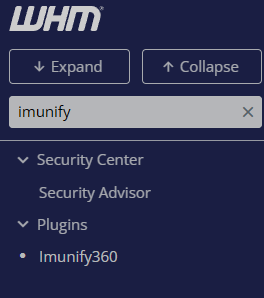
- Use the search bar in the left-hand menu.
- Search for Imunify360.
- Click Imunify360 to open the management dashboard.
Understanding the Dashboard
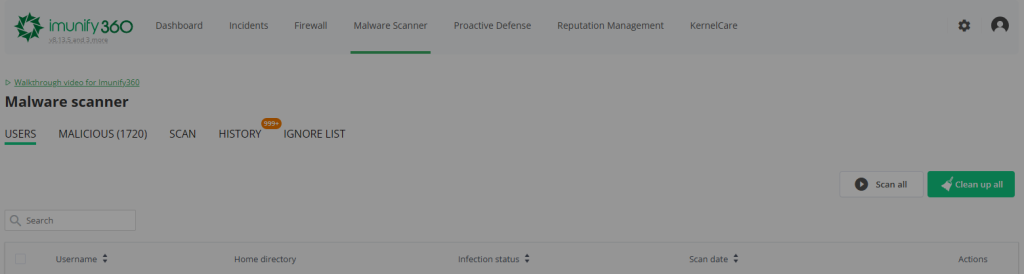
The Imunify360 dashboard provides an overview of your server’s security status.
From the dashboard, you can review:
- Current protection status
- Malware detections
- Firewall activity
- Blocked IP addresses
- Security incidents
- System health information
Regularly reviewing the dashboard can help identify security issues before they impact hosted websites.
Reviewing Malware Detections
Imunify360 continuously scans files for malware and suspicious activity.
View detected threats
- Open Imunify360.
- Select Malware Scanner or Incidents.
- Review the list of detected files.
Information typically includes:
- File location
- Detection type
- Detection date
- Recommended action
Manage detected files
Depending on the detection, you may be able to:
- Clean infected files
- Quarantine files
- Restore files from quarantine
- Mark files as false positives
Always review detections carefully before taking action.
Managing Firewall Protection
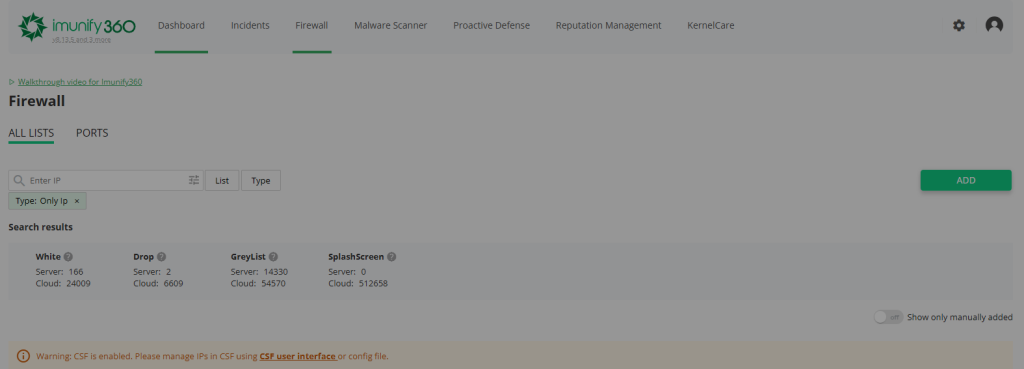
Imunify360 includes an integrated firewall that helps protect the server from unauthorized access and malicious activity.
Review blocked IP addresses
- Open Imunify360.
- Navigate to the Firewall section.
- Review currently blocked IP addresses.
Allow or remove blocked IPs
If a legitimate visitor or administrator is blocked:
- Locate the IP address.
- Review the reason for the block.
- Remove the block if appropriate.
Only unblock IPs that you trust
Reviewing Security Incidents
The Incidents section provides information about security events detected by Imunify360.
View security events
- Open the Incidents tab.
- Review recent events.
- Investigate any recurring or high-risk alerts.
Examples may include:
- Malware detections
- Brute-force attacks
- Unauthorized access attempts
- Suspicious activity warnings
Proactive Defense
Proactive Defense helps prevent malicious scripts from executing on the server.
Review protection status
- Open the Proactive Defense section.
- Verify that protection is enabled.
- Review any available alerts or notifications.
This feature can help stop attacks before they impact websites or server resources.
Monitoring Security Health
Regular monitoring can help identify:
- Malware infections
- Vulnerable applications
- Repeated login attacks
- Suspicious file changes
- Firewall violations
Maintaining good security practices, including software updates and strong passwords, helps maximize the effectiveness of Imunify360.
Additional information
Security settings may affect website behavior and server accessibility. Review changes carefully before applying them.
For advanced configuration options, refer to the Imunify360 documentation:
NOTE: HostPapa manages Imunify360 licensing, installation, updates, and platform maintenance. Customers are responsible for reviewing security events and configuring security policies according to their requirements.
If you need help with your HostPapa account, please open a support ticket from your Dashboard.