Overview
Acronis Backup is a remote, enterprise-grade backup solution that stores data on a separate, dedicated infrastructure, independent of your server’s local storage. For servers without a control panel (unmanaged environments), Acronis provides centralized management via the Acronis Cyber Protect web console, which is accessible regardless of your server’s control panel configuration
NOTE: Acronis Backup is available as an add-on service for eligible unmanaged VPS and Dedicated Server plans. Installation, configuration, and ongoing management are the customer’s responsibility.
Install Acronis Backup
To begin using the service, you first need your unique login credentials. The login credentials will be listed in the Welcome Email you receive after your backup service is activated.
If you have not received your credentials, please contact our support team.
How to Install the Acronis Agent
You do not need a control panel plugin to manage your backups. Follow these steps to enroll your server:
- Access the Portal: Navigate to the Acronis Cyber Protect login page using your browser.
- Log In: Use the credentials provided in your Welcome Email to sign in.
- Add Your Device: Once logged in, navigate to the Devices section in the left-hand navigation menu.
- Register Your Server: Click the Add or Add device button.
- Install the Agent: Follow the on-screen prompts to download and install the appropriate agent for your operating system (e.g., Linux or Windows).
- Activate: Once the agent is installed on your server, complete the registration process as prompted by the console to link your server to your account.
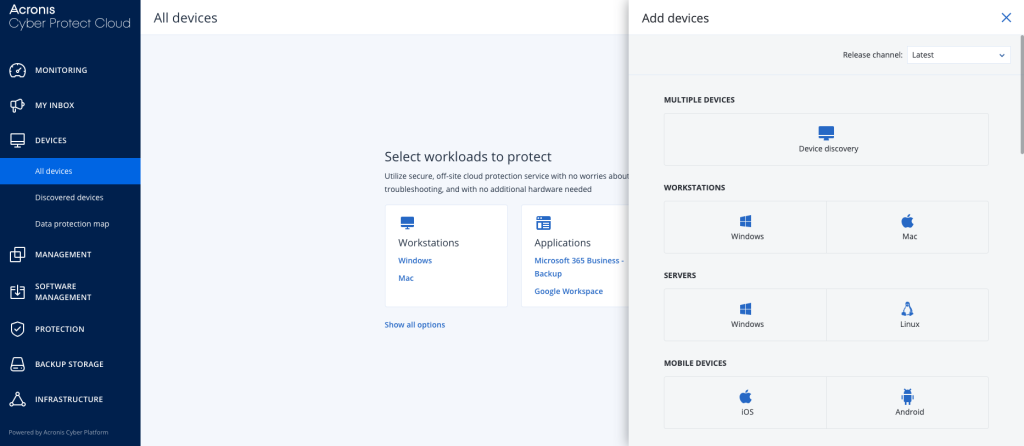
Managing Your Backups
After your server is successfully registered in the console, you have full control over your backup strategy:
- Backup Scheduling: Select your device in the Devices tab and click Protect to edit your backup frequency (e.g., Daily, Weekly, Hourly) and set custom schedules.
- Retention Policy: Within the Protect settings, you can configure the number of recovery points you wish to keep to manage your storage usage.
- Monitoring & Recovery: Use the Recovery option under your device menu to view available backup points and restore files, folders, or full system images.
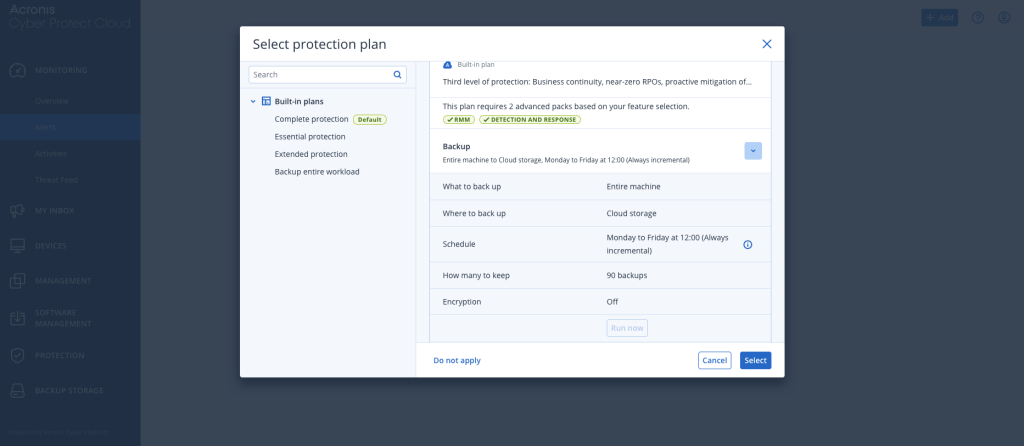
How to restore data from Backups
To restore data from your backups, follow these steps:
- Log in to the Acronis Cyber Protect console.
- Navigate to the Devices section in the left-hand menu.
- Select your specific device.
- Click the Recovery option from the device menu.
- View your available backup points and select the data you need to restore – this lets you restore specific files, folders, or full system images
NOTE: Acronis Backup is available as an add-on service for eligible unmanaged VPS and Dedicated Server plans. Installation, configuration, and ongoing management are the customer’s responsibility.
If you need help with your HostPapa account, please open a support ticket from your Dashboard.