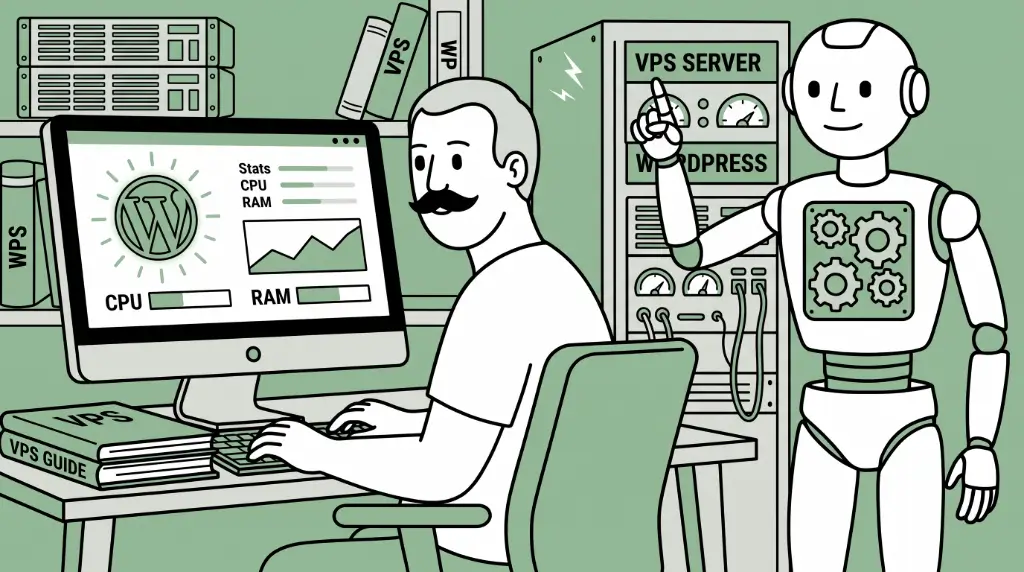
VPS hosting for WordPress gives your site its own dedicated share of server resources, including CPU, memory, and storage. A Virtual Private Server (VPS) helps when shared hosting can no longer handle your workload. It also gives you more control over how WordPress runs.
If your site brings in leads, sales, or bookings, slow performance can interrupt business. You might notice a dragging WordPress dashboard, resource warnings, or checkout delays during promotions.
An upgrade should address those needs, not simply give you a bigger hosting bill. A small, quiet site may benefit more from caching and image improvements first.
This guide explains WordPress VPS hosting. We’ll cover when you need it, key features, and setup. We’ll also help answer a common question: Is a VPS worth it for WordPress?
CONTENTS TABLE
- What Is VPS Hosting for WordPress?
- When to Upgrade WordPress to VPS: Signs Your WordPress Site Has Outgrown Shared Hosting
- What to Look for in the Best VPS for WordPress
- Virtual Private Server WordPress: Managed vs. Unmanaged
- WordPress VPS Setup: How to Get Your Site Running
- How to Move an Existing WordPress Site to a VPS
- How Much Does WordPress VPS Hosting Cost?
- Choosing VPS Hosting for WordPress

What Is VPS Hosting for WordPress?
VPS hosting for WordPress gives your site a private slice of server resources. You share physical hardware with others. However, your assigned CPU, RAM, and storage remain reserved for you. That matters when your website starts carrying business weight.
WordPress needs more than storage space. Its PHP code, database queries, plugins, and background tasks all need server resources. As demand grows, limited processing power or memory can slow the site.
On shared hosting, those tasks wait within a shared queue. Another busy website can create delays. On a VPS, the queue belongs to your site. Your PHP workers and database memory face fewer interruptions from other sites.
That difference can be surprising. Your front page may load quickly again, and the WordPress dashboard can become less frustrating. Customers may also encounter fewer checkout delays.
How VPS Differs From Other Hosting
- Web hosting works well for small sites. It shares resources across many accounts. It costs less, but heavy activity can create limits.
- Managed WordPress focuses on WordPress convenience. It often includes updates, security help, and caching. However, resource limits vary by provider and plan. Managed WordPress suits typical creators who need speed but don’t want to, or don’t have the know-how to dive into the Linux shell and type commands.
A dedicated server gives you an entire physical machine. That’s powerful, but it can be excessive. Most growing businesses need a VPS first.
A virtual private server WordPress plan sits comfortably between both extremes. It offers more power than shared hosting. It also avoids dedicated server costs.

When to Upgrade WordPress to VPS: Signs Your WordPress Site Has Outgrown Shared Hosting
Your site doesn’t need massive traffic before upgrading. Resource use often matters more than visitor counts. A modest WooCommerce store can need more power than a busy brochure site.
Watch for these signs when deciding whether to upgrade WordPress to a VPS:
- Time to First Byte (TTFB) exceeds 600 milliseconds: Server processing may be waiting behind shared account activity.
- Your wp-admin dashboard feels slow: Plugins, reports, and database queries may lack available memory.
- You receive 508 errors or CPU warnings: Your host may be throttling resource-heavy requests.
- Checkout stalls during promotions: Product pages, cart sessions, and payment tools can overwhelm shared limits.
- Your plugin count keeps climbing: Each plugin can add code, database queries, and background tasks.
- You need Redis or server-side tools: Many shared plans limit advanced performance software.
No single visitor count settles the decision. Compare traffic with the work your site performs: a lean business website and a store with active carts, customer accounts, and background tasks can place different demands on hosting.
A lean local business website may remain happy on Web Hosting. A small online store may not. That’s the tricky part. Here’s a use-case example: A business owner reports a slow dashboard and resource-limit warnings during store promotions. Next, review the workload and hosting limits, then size an appropriate managed VPS plan.
If your site is quiet and has no store, wait. Spend on image compression and caching first. However, if two or more signs apply to your site, you’ll likely need to upgrade.

What to Look for in the Best VPS for WordPress
The best VPS for WordPress is not always the biggest plan. It’s the plan that fits your workload. Think of it like choosing a delivery van. You need enough capacity for today’s orders, plus room for tomorrow’s.
Focus on practical WordPress VPS requirements. CPU, RAM, storage, caching, security, and support all matter. Missing one can create a bottleneck elsewhere.
CPU & RAM
Start with two virtual CPU cores and 4GB of RAM. That’s a sensible floor for many business WordPress sites. It supports normal traffic, plugins, and routine admin work. The typical business profile this would suit includes:
- Small blogs with few content updates per week and modest caching needs.
- High-traffic editorial websites with complex plugins.
- eCommerce stores with thousands of customers that need fast database queries and host multiple cart sessions simultaneously.
Choose 8GB of RAM for stores or membership sites. These sites create more logged-in sessions. They also run more database operations.
Memory often fails first. PHP workers and your database both need RAM. When memory runs short, your server starts shuffling tasks. That’s when speed can fall off a cliff.
NVMe Storage
Look for Non-Volatile Memory Express (NVMe) storage. NVMe storage moves data much faster than older drives. HostPapa uses enterprise-grade NVMe storage across performance-tuned servers.
That may sound technical, but the payoff is simple. Faster disk work can mean faster database responses. Your visitors notice the difference as pages load faster.
Caching & the Server Stack
A good VPS lets you run a stronger server stack. This includes server-level caching, PHP-FPM worker pools, and Redis object caching. These tools reduce repeated work.
Page caching stores ready-made page versions. PHP-FPM manages PHP workers more efficiently. Redis keeps frequently used database objects in memory.
Together, they reduce strain during traffic spikes. That’s why many businesses make the switch. More power helps, but smarter processing helps too.
PHP Version & Control Panel
Choose a provider with current PHP versions. Modern PHP releases often improve speed and security. One-click version switching also makes testing easier.
A familiar control panel saves time. cPanel helps you manage domains, files, databases, and email. You shouldn’t need a new dashboard for every task.
Backups, SSL & Security
Look for automated backups and an included SSL certificate. SSL protects visitor data and enables HTTPS. It also supports customer confidence during checkout.
Follow the 3-2-1 backup rule. Keep three copies across two storage types, with one copy off-site. It sounds cautious because it is.
Your VPS should also support firewall rules. WordPress faces common threats, including login attacks and vulnerable plugins. Basic server protections should not feel optional.
Support & Uptime
Support quality is a specification, not a soft extra. A VPS gives you more responsibility. When something breaks, skilled support can save a long night.
Look for a 99.9% uptime guarantee. HostPapa also provides 24/7 PapaSquad support by phone, chat, and email. That safety net matters when business does not stop.
These are starting estimates, not minimum WordPress requirements or named HostPapa plans. Confirm the right allocation for your site before choosing.
| Site Type | Recommended CPU | Recommended Memory | Suggested Storage |
| Small business site | Two vCPU cores | 4GB RAM | 80GB NVMe |
| Content-heavy blog | Two to four vCPU cores | 4GB to 8GB RAM | 100GB NVMe |
| WooCommerce store | Four vCPU cores | 8GB RAM | 150GB NVMe |
| Membership site | Four vCPU cores | 8GB to 16GB RAM | 150GB+ NVMe |
Compare HostPapa VPS Hosting Plans when you’re ready for more room.

Virtual Private Server WordPress: Managed vs. Unmanaged
The decision is often simple. Choose Unmanaged VPS only when you enjoy server work. You’ll need comfort with command-line updates, firewall rules, patching, and troubleshooting.
Otherwise, choose Managed VPS. You can focus on your business. The provider helps manage the server environment.
An Unmanaged VPS may cost less each month. Yet it can cost more in time. A broken site at 2:00 a.m. becomes your problem.
Management responsibilities vary by plan, so confirm which updates, security tasks, and troubleshooting services are included.
| Feature | Managed VPS | Unmanaged VPS |
| Server updates | Provider handles them | You handle them |
| Security patching | Supported | Your responsibility |
| Command-line skills | Not often required | Often required |
| Monthly cost | Higher | Lower |
| Time commitment | Lower | Higher |
A VPS should reduce stress, not create another job. Choose the level that matches your skills and available time.
Dedicated resources that scale with your growth.
Root access, NVMe storage up to 3x faster than standard SSDs, DDoS protection and firewall, and your choice of managed or unmanaged from as low as $2.95 per month with 99.9% uptime and a 30-day money-back guarantee.

WordPress VPS Setup: How to Get Your Site Running
WordPress VPS setup does not need a terminal wall. Most business owners can complete the core steps through cPanel. Keep each stage simple, and test as you go.
Step 1: Choose Your Plan & Server Location
Choose a VPS plan that matches your workload. Start with 4GB RAM for a business site. Choose 8GB if you run a store.
Pick a data centre near your main audience. Latency still matters. More memory cannot fix physical distance.
For example, a US-focused store should use a North American location. A European audience may benefit from a European server. Those milliseconds add up across every page visit. Check the locations offered on your selected plan before ordering.
Step 2: Point Your Domain
Next, update your domain’s A record. These domain instructions are for a new site. Point it toward your VPS IP address. You can find that address within your hosting account.
DNS changes can take several hours. They may take up to 48 hours globally. Many updates happen much faster, but plan carefully.
Do this before a major sale or campaign. You don’t want DNS changes competing with customer traffic. That’s a needless headache.
Step 3: Install WordPress
WordPress installation in cPanel is straightforward. Open your app installer, select WordPress, and choose the domain. Then create an administrator username, password, and email address.
Use a unique administrator name. Avoid admin because attackers often try it first. Use a password manager to create a long password.
An Unmanaged VPS needs more work. You must install the web server, PHP, and database yourself. That route suits experienced developers, not busy owners.
For cPanel, files, and database help, use the HostPapa Knowledge Base. It includes WordPress and hosting tutorials for common tasks.
Step 4: Secure the Install
Start security work before marketing the new site. Activate your FREE SSL certificate and force HTTPS. That protects logins, forms, and payments.
Create a non-root administrative user for server tasks. Never use the root account for regular work. It creates more risk than convenience.
Disable WordPress file editing in wp-config.php. Add this line:
define(‘DISALLOW_FILE_EDIT’, true);
Also enable a firewall. Use WordPress security tools with sensible rules. Security is less glamorous than design, but it protects every sale.
Step 5: Turn On Caching
Enable server-level caching where your plan supports it. Then add one reputable WordPress caching plugin. One is enough.
Avoid running two page caching systems together. They can conflict and create strange page behaviour. Your site may show old content or break logged-in pages.
Test key pages after caching starts. Check your home page, contact form, cart, and checkout. A five-minute test can prevent an awkward customer experience.
Step 6: Set Up Backups & Monitoring
Set automated daily backups. Keep copies away from the same server. A backup stored only next to your site isn’t enough.
Add uptime monitoring as well. Tools like UptimeRobot can alert you when your site goes down.
Monitor site speed each month. Check response times after plugin updates. Small checks can spot trouble before customers do.

How to Move an Existing WordPress Site to a VPS
Moving a site can feel risky. Nobody wants a broken homepage during business hours. The good news is that most WordPress sites move within a day, often without visitor-facing downtime.
HostPapa offers FREE white-glove website migration help with our hosting plans. That removes much of the pressure. A migration specialist can help move your site and domain safely.
If you decide to handle the move yourself, follow this order:
- Create a full backup of files and databases.
- Copy your files and database onto the VPS.
- Test the site on the new server first.
- Lower your DNS time-to-live before switching.
- Change DNS during a quiet traffic window.
- Check forms, carts, email, and key pages afterward.
Before switching, check for hard-coded URLs that need updating and use the approved migration instructions for any changes.
Test transactional emails after launch. Check order confirmations, contact forms, and password resets. That small step protects customer trust.

How Much Does WordPress VPS Hosting Cost?
WordPress VPS hosting cost varies by management level and resources. Entry-level Unmanaged VPS plans often cost less. However, you handle the technical tasks yourself.
Mid-range Managed VPS plans cost more each month. They suit growing business sites that need support. You pay for help, time savings, and fewer sleepless nights.
Higher-resource Managed VPS plans suit stores and memberships. These sites need more RAM, CPU capacity, and database speed. They also lose more when checkout slows.
Consider these typical industry ranges:
| VPS Type | Typical Monthly Range | Realistic Use |
| Entry Unmanaged VPS | $10 to $30 | Developers and low-maintenance sites |
| Managed VPS | $30 to $80 | Growing business sites and busy blogs |
| Higher-Resource Managed VPS | $80 to $200+ | Stores, memberships, and larger sites |
Budget beyond the monthly plan price. Some providers charge extra for backups. Others charge for control panel licenses. An Unmanaged VPS also has a hidden cost: your own hours.
Check renewal prices carefully. Introductory rates are promotional across the industry. Compare the ongoing cost before committing.
Measure VPS cost against business risk. What does an hour of downtime cost? What does one stalled checkout cost? That comparison tells a clearer story than a shared hosting invoice.

Choosing VPS Hosting for WordPress
If your WordPress site slows under load, hits resource limits, or earns revenue, a VPS is likely the right move. It gives your site more consistent CPU, memory, and storage performance.
A small, quiet site may not need one yet. That’s fine. Improve image sizes and caching first. Spend money where it makes a real difference.
However, a growing site needs room before it breaks. HostPapa VPS Hosting offers scalable resources, a 30-day money-back guarantee, and FREE migration support. Those features make the move feel less daunting.
Your website should help your business grow. It should not become a bottleneck. Talk with the PapaSquad any time, day or night, and choose a VPS plan that fits your next stage.
Compare HostPapa VPS Hosting plans to find the resources and management option that fit your site. If you need help choosing, talk to the PapaSquad, available 24/7.