Your Managed WordPress dashboard is the control panel for managing your website without logging into WordPress for routine tasks. From here, you pick the website you’re working on, switch between its environments, and use seven tabs (Overview, Domains, Backups, Access, Management, Monitoring, and Settings) to handle your domains, backups, files, updates, and logs. Here’s a short tour of how it’s laid out, so you always know where to go.
This Knowledge Base article explains how to use the dashboard for a website created with your Managed WordPress service.
Your Website & Its Environments
You open this dashboard from your HostPapa account, where you also choose which website you’re working on. Inside the dashboard, each website can have one or more environments, which are separate, fully working copies of the site:
- Staging: an optional copy for testing changes safely before they go live. Staging isn’t created automatically, so you add it when you want it (see Create a staging environment).
- Production: your live website, the one visitors see.
When your website has more than one environment, a bar across the top shows which environment you’re working on, with a selector to switch between them:
The environment selector, switching between Production and Staging:
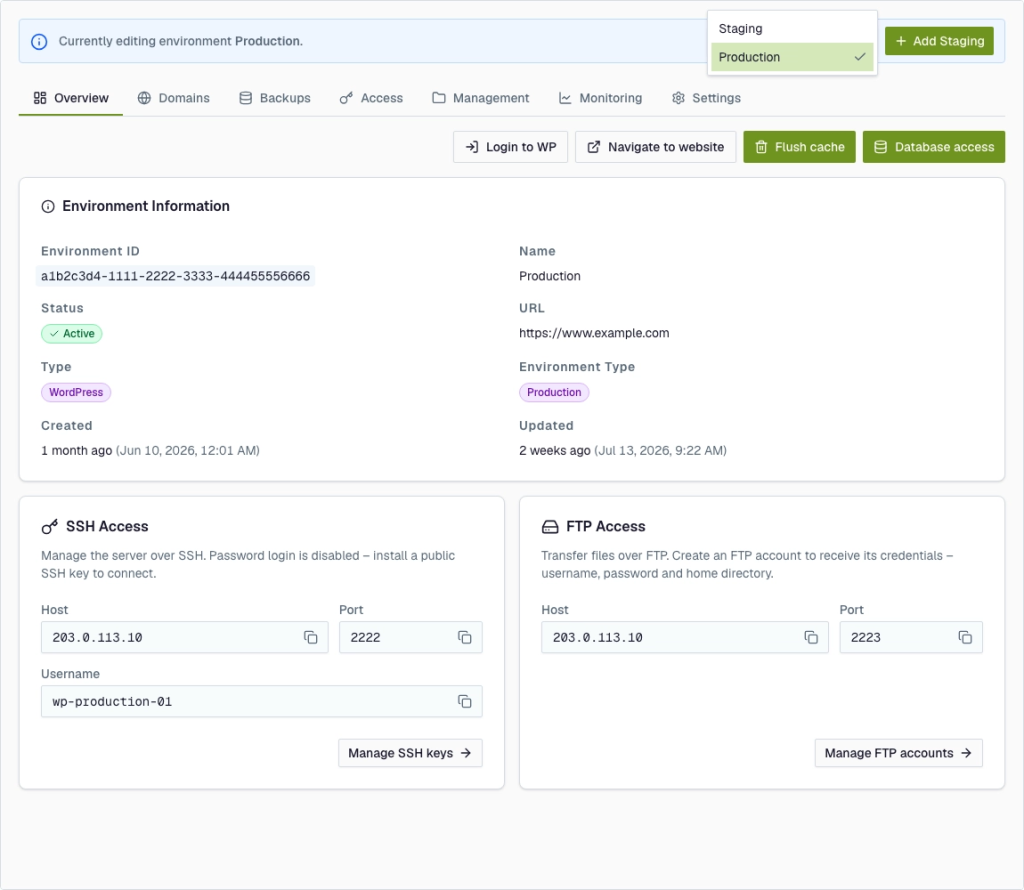
* “Environment” = a copy of your site, and you’ll see the word throughout the dashboard. Think of it as one running copy of your website (its files, database, domains, and backups). Most of the time, you’ll be on Production, and you’ll switch to Staging to test.
The seven tabs
Everything is organized into tabs across the top. Here’s what each one is for:

| Tab Name | What you can do there |
| Overview | See the environment’s status and web address at a glance. One-click Login to WP, Navigate to website, Flush cache, and Database access (your database credentials, for tools that need them). Quick links to your Secure Shell (SSH) and File Transfer Protocol (FTP) connection details. |
| Domains | Connect your own domain name, check its Domain Name System (DNS) and Secure Sockets Layer (SSL) status, and remove domains. |
| Backups | Create backups, restore to an earlier point (including from another environment), and review restore history. |
| Access | Set up FTP (SFTP) accounts and SSH keys to reach your files and command line. |
| Management | The built-in File Manager, plus WordPress Core, Themes, and Plugins (versions and auto-updates). |
| Monitoring | Your traffic Analytics, plus Origin, Edge, and Security logs. |
| Settings | Change the environment’s PHP version. On a staging environment, you can also delete it when you’re done with it. |
The tab bar stays the same whether you’re viewing Production or Staging, and always acts on the environment currently shown in the selector. Two things work differently on Staging: you can add custom domains only on Production (Staging keeps its temporary address), and only Staging can be deleted from Settings.
The URL field shows the environment’s current web address.
If you need help with your HostPapa account, please open a support ticket from your dashboard.