Clearing or “flushing” your site cache forces the global Content Delivery Network (CDN) to purge stored files and serve the most up-to-date version of your content to visitors. Use this quick guide to learn how to clear the edge cache across your whole environment or for specific URLs directly from your Managed WordPress dashboard.
To keep your site fast, pages are cached (stored ready-to-serve) on the edge network (the global CDN in front of your site). If you’ve made a change that isn’t showing up for visitors, clearing or “flushing” the cache forces fresh copies to be served.
What this clears: The edge (CDN) cache. It does not clear a caching plugin running inside WordPress (such as WP Rocket) or your own browser’s cache. If a change still doesn’t show, clear those as well.
Steps to Flush Your Cache
- Go to the Overview tab.
- Click Flush cache (top-right).
- Choose what to clear:
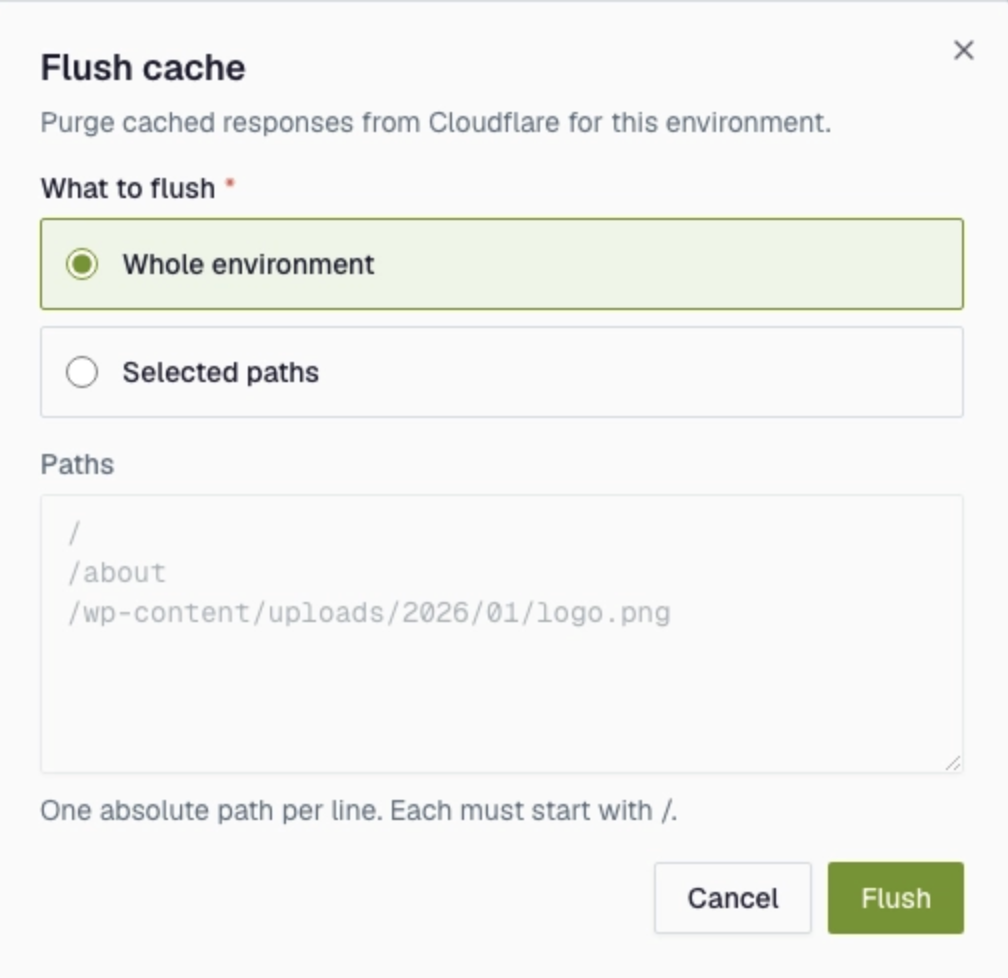
- Whole environment: clears the cache for your entire site. Use this if you’re not sure; it’s the simplest option.
- Specific paths: clears only the pages you list. Enter one path per line, each starting with / (for example /about or /shop/sale). You can list up to 10 paths. Use this when you’ve changed just a page or two and don’t want to clear everything.
4. Click Flush.
If you need help with your HostPapa account, please open a support ticket from your dashboard.