Use the HostPapa Dashboard to manage WordPress core, plugin, and theme auto-updates in one place. You can check installed versions, choose how WordPress core updates, and turn automatic updates on or off for individual plugins and themes to help keep your website secure and compatible.
This Knowledge Base article explains how to manage automatic updates for WordPress core, plugins, and themes using your Managed WordPress service.
Your dashboard shows which versions of WordPress, your plugins, and your themes are installed, and lets you control which ones update automatically. Keeping things up to date is the simplest way to stay secure.
First steps:
- Log in to your HostPapa Dashboard.
- Click on My WordPress.
Where to install or activate. This dashboard manages auto-update settings and shows versions and status. To install, activate, or deactivate a plugin or theme, log into WordPress from your dashboard and use the WordPress admin area as usual.
WordPress core updates
- On the Management tab, open the Core sub-tab.
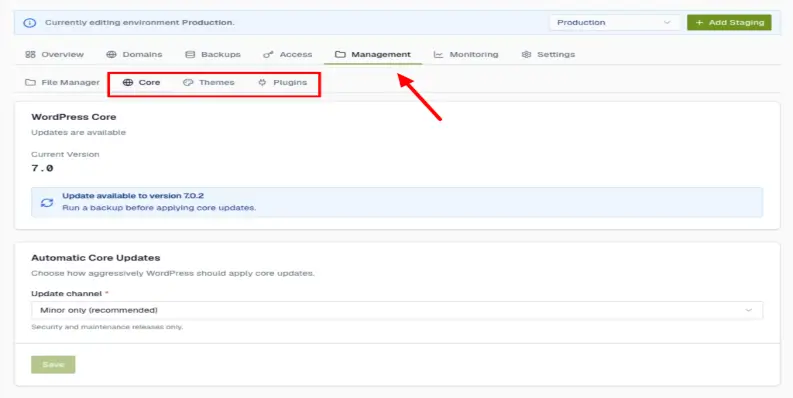
- The WordPress Core card shows your installed version, the latest available version, and whether an update is available.
- The Automatic Core Updates card lets you choose an Update channel. The channel is how aggressively WordPress updates itself:
- Off: Never automatically update. (You’ll update manually in WordPress).
- Minor only (recommended). Install security and maintenance releases automatically. This option is the best for most sites.
- Major: Also install new full versions automatically.
- Dev: Bleeding-edge development builds (not for live sites).
- Pick a channel and click Save.
Plugin and theme auto-updates
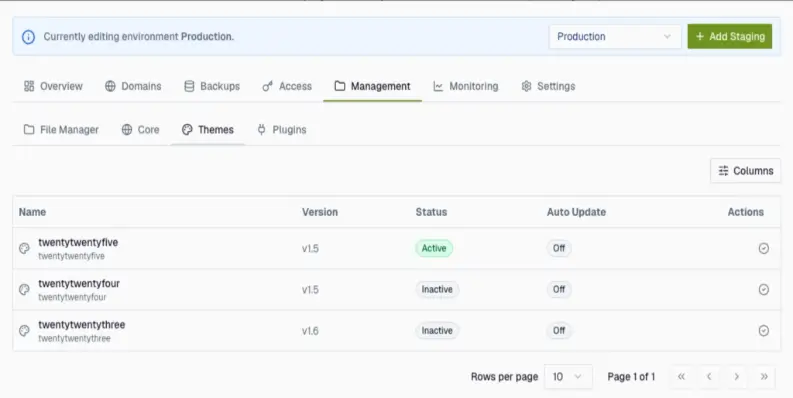
- Open the Plugins (or Themes) sub-tab. Each row shows the item’s name, version, status (active/inactive), and an Auto Update toggle.
The Plugins sub-tab: One plugin has Auto Update switched On (green), another Off:
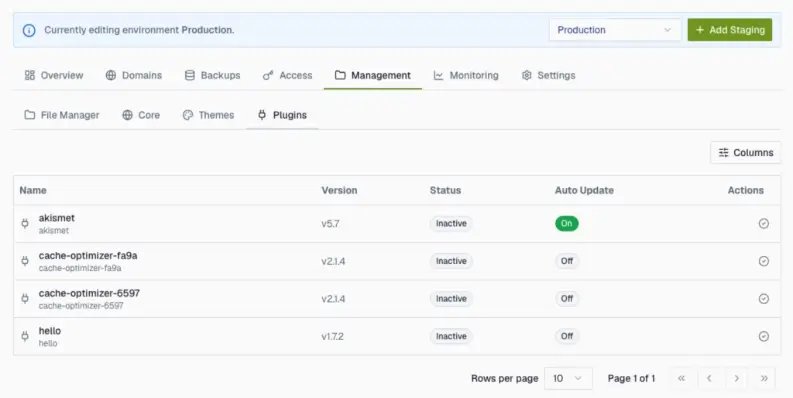
- Click a plugin’s Auto Update control to switch it On (it turns green). WordPress will then keep that plugin updated by itself. Click it again to switch it Off and update it yourself.
The Themes sub-tab works exactly the same way:
Tip: Before turning on auto-updates for everything, make sure you have a recent backup and restore your site. That way, an update that doesn’t work with your site is easy to roll back.
If you need help with your HostPapa account, please open a support ticket from your dashboard.