The File Manager lets you browse, edit, upload, download, and organise your site’s files right in your browser — no FTP client needed. It works on your site’s main WordPress folder.
The File Manager tool can be found in the Management tab:
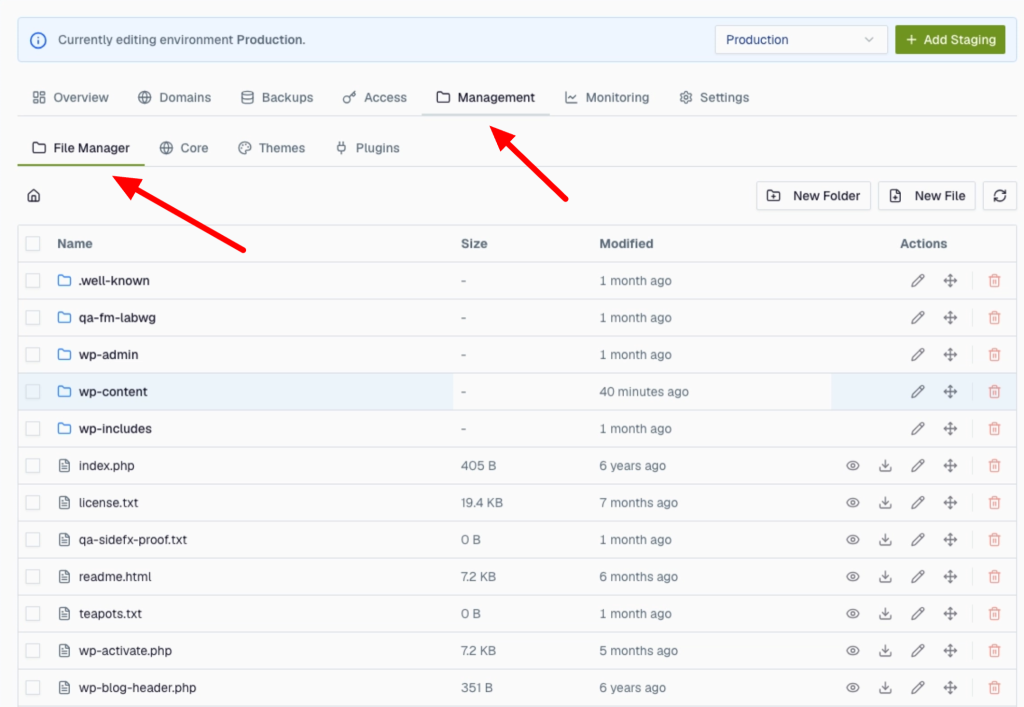
- Click a folder to open it; use the breadcrumb/back to go up.
- Each file and folder shows its size and when it was modified, with actions on the right: view, download, edit, move, and delete.
- The toolbar has New Folder and New File buttons (and a refresh).
Common tasks
- Edit a file — click the file (or its edit action) to open the built-in text editor, make your change, and save.
- Create — use New File or New Folder, give it a name, and save.
- Upload / download — upload files into the current folder, or download any file to your computer.
- Rename or move — use the move/rename action and pick a destination. You can select several items and move or delete them together.
- Delete — removes a file. For a folder that isn’t empty, you’ll be asked to confirm that you want to delete its contents too.
What you can and can’t do (the rules)
The File Manager is for quick edits to your site’s text and code files. A few limits keep it safe and fast:
- Text files only in the editor. You can open and edit recognised text/code files — PHP, HTML, CSS, JS, JSON, .txt, .md, and similar. Images, PDFs, ZIPs, and other binary or executable files can’t be opened or edited here (“binary file” / “unsupported type”); transfer those over FTP (SFTP) access instead. (You can still delete any file you can see, whatever its type.)
- Files must be plain UTF-8 text. A file saved in an older encoding (e.g. Latin-1) is refused on open to avoid corrupting it — convert it via SFTP/SSH first.
- 2 MB edit limit. Files larger than 2 MB can’t be edited in the browser; use SFTP for big files.
- Filename rules. New names must start with a letter or number and use only letters, numbers, dots, underscores, and hyphens, up to 255 characters. You can’t create hidden/“dot” files (like .htaccess) here — create those over SFTP/SSH; existing ones still show up.
- Big folders are capped at 200 items. A folder listing shows up to 200 entries and then marks itself truncated — open subfolders to see more (there’s no “next page”). Deleting a folder tree is likewise limited to 200 items at once; split large deletions or use SSH.
- Deleting a non-empty folder removes everything inside it — you’ll be asked to confirm that.
- Editing conflicts are caught. If a file changed since you opened it, your save is rejected to protect the newer version — just re-open the file, re-apply your change, and save again.
- Same files everywhere. The File Manager, FTP, and SSH all work on the same folder (your site’s webroot), and changes take effect on your live site immediately. There’s no protection on sensitive files like wp-config.php, so take care when editing core or configuration files.