1. Overview: Why Two-Factor Authentication (2FA) is Essential
In today’s digital landscape, relying solely on a username and password is no longer enough to safeguard your web hosting environment, domain registrations, and business assets. Cyber threats such as phishing attacks, credential stuffing, and brute-force attempts are increasingly sophisticated.
To ensure your account data and services remain secure, Two-Factor Authentication (2FA) is enabled for the HostPapa Dashboard.
1.1. What is Two-Factor Authentication (2FA)?
Two-Factor Authentication (also known as multi-factor authentication or two-step verification) adds an essential second layer of defense to your login process. Even if an unauthorized party obtains or guesses your login credentials, they cannot access your HostPapa Dashboard without possessing the secondary, time-sensitive verification code sent directly to your registered email address.
2. How 2FA Works in the HostPapa Dashboard
Accessing your HostPapa Dashboard with Two-Factor Authentication is quick, straightforward, and automatic. Below is the step-by-step breakdown of how the authentication flow operates:
Step 1: Initial Login with CID and Password
- Navigate to the HostPapa Dashboard login portal at https://www.hostpapa.com/dashboard.
- Enter your Client ID (CID) (or primary registered account email) and your account Password.
- Click Log In.
Step 2: Generation & Delivery of the 6-Digit Verification Code
Once your credentials are successfully validated by the system:
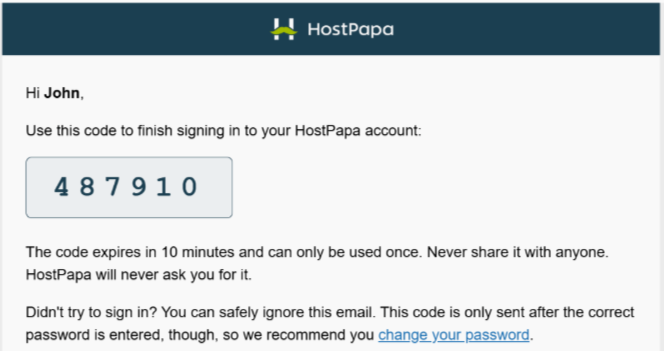
- The HostPapa security portal immediately triggers a secure, time-sensitive 6-digit verification code.
- This verification code is dispatched via email to the primary contact email address associated with your HostPapa account.
Step 3: Entering the Verification Code
- Check your email inbox for an automated message from HostPapa containing your 6-digit security code.
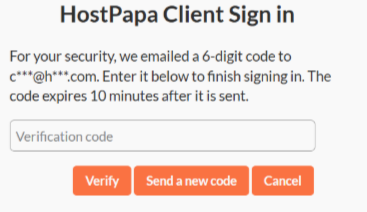
- Return to the HostPapa login screen, which now displays the 2FA Verification Prompt.
- Enter the 6-digit code into the designated input fields.
- Click Verify or Submit to finalize the authentication process.
Once verified, you will be redirected immediately to your HostPapa Dashboard overview.
3. 2FA Authentication for HostPapa Sub-Users (Webmasters & IT Personnel)
If you have configured Sub-User accounts within your HostPapa Dashboard—such as delegating access to a webmaster, developer, or internal IT specialist:
- Independent 2FA Enforcement: Sub-user logins are protected by the exact same mandatory Two-Factor Authentication security protocol.
- Direct Code Delivery: When a sub-user logs in using their assigned credentials, the 6-digit verification code is not sent to the primary account holder. Instead, it is routed directly to the email address assigned specifically to that sub-user’s profile.
4. Important Best Practices & Guidelines
To avoid accidental account lockouts and ensure seamless access to your dashboard at all times, please review and implement the following guidelines:
Maintain a Valid and Accessible Contact Mailbox
Ensure the email address on file in your HostPapa profile is active, secure, and monitored regularly. Remember the login credentials for this external email provider, as it is your gateway to receiving verification codes.
Check Spam and Junk Folders
Email filters occasionally misclassify automated security notifications. If your 6-digit verification code does not arrive in your primary inbox within 1–2 minutes:
- Spam, Junk, or Promotions folder.
- Safe Senders / Whitelist list to prevent future delivery interruptions.
💡 Recommandation:
We recommend using a contact email address that is not configured or hosted within your HostPapa account itself to avoid situations where the email may be suspended if the renewal invoice is not paid on time.
5. Troubleshooting & Support
If you experience issues logging in, have lost access to your primary email address, or do not receive the verification code:
Verify Email Address: Confirm that you are checking the exact inbox associated with your HostPapa Client ID or sub-user profile.
Request a Resend: Allow 60 seconds before clicking “Resend Code” on the verification screen to prevent code invalidation.
Contact HostPapa Support: Our dedicated technical and billing support specialists are available 24/7/365 to assist with identity verification and account recovery.
Contact HostPapa Support Portal: https://www.hostpapa.ca/about-hostpapa/contact/
- Support channels include 24/7 Live Chat, Phone Support, and Ticket Submission.