1. Select the calendar icon at the top of the compose window.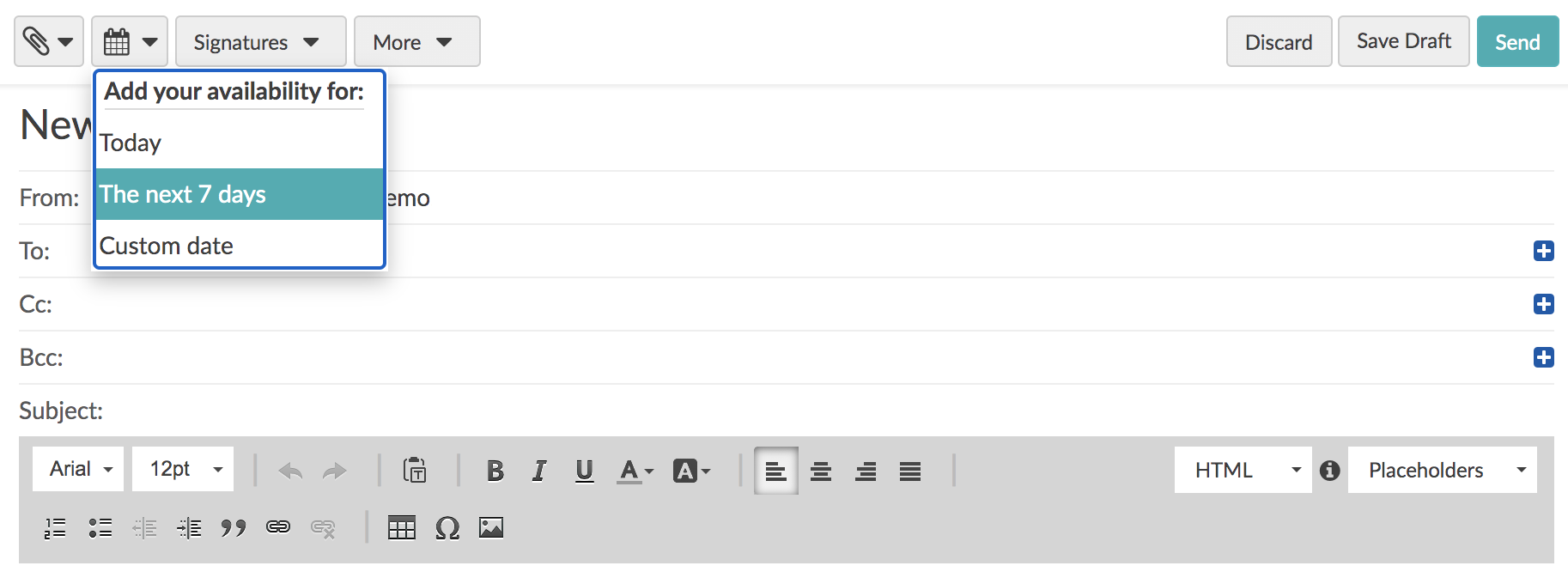
2. You can choose to insert your calendar availability for that day, the next 7 days, or you can set a custom date range.
3. If you select The Next 7 Days, a popup will appear where you can choose which days you would like to add to the message. If you select Custom Date, a popup will appear where you can select a specific date.
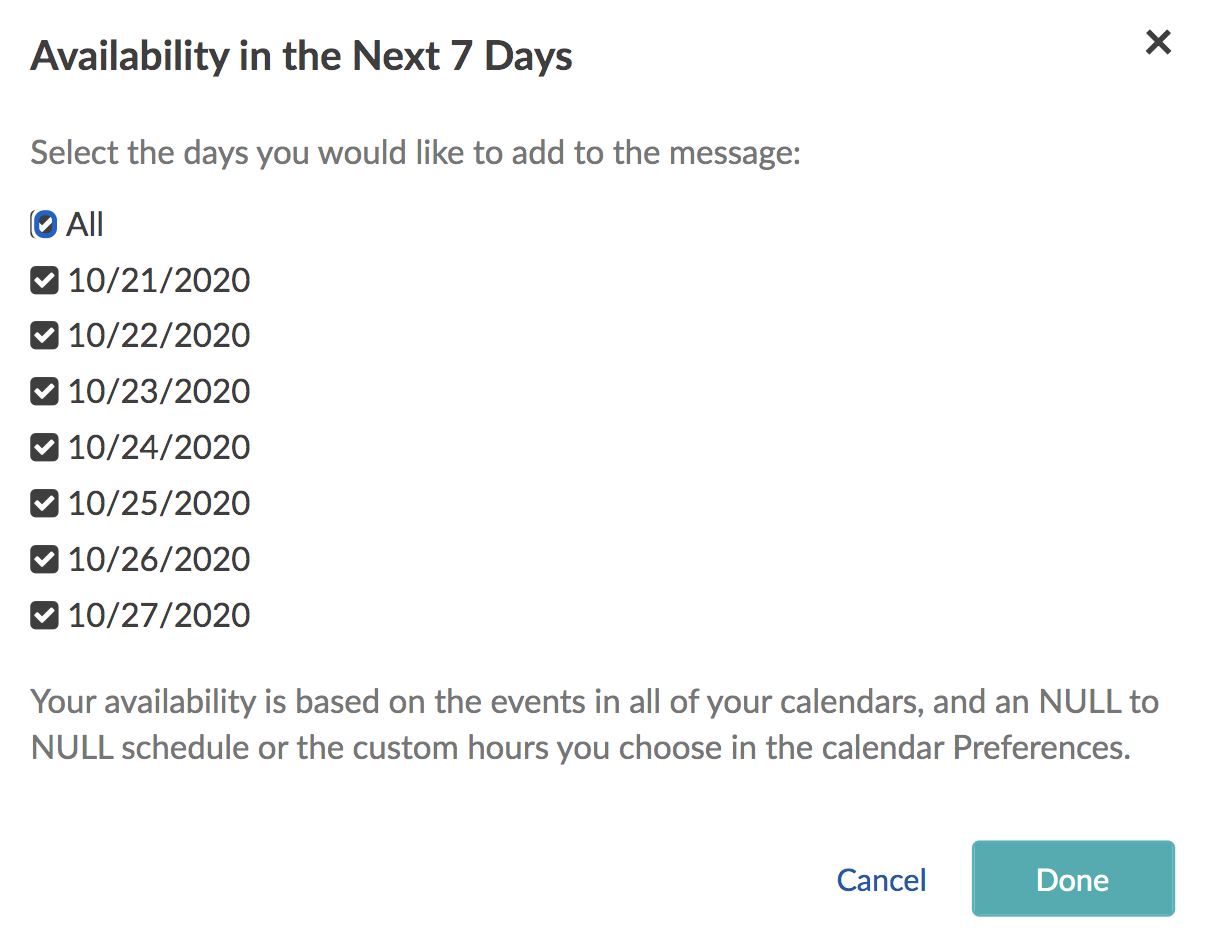
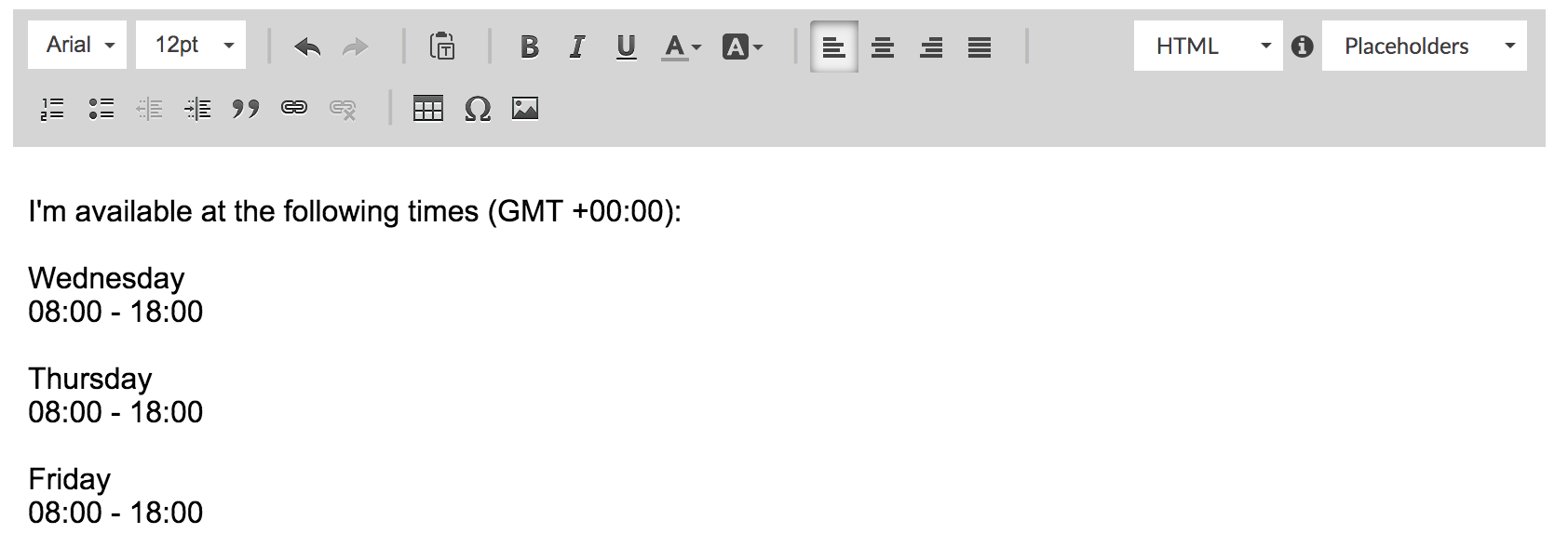
4. Once you have completed this step, select Done, and your availability will show in the message body.